
Zapier integration · event routing
Send leezy events to thousands of apps
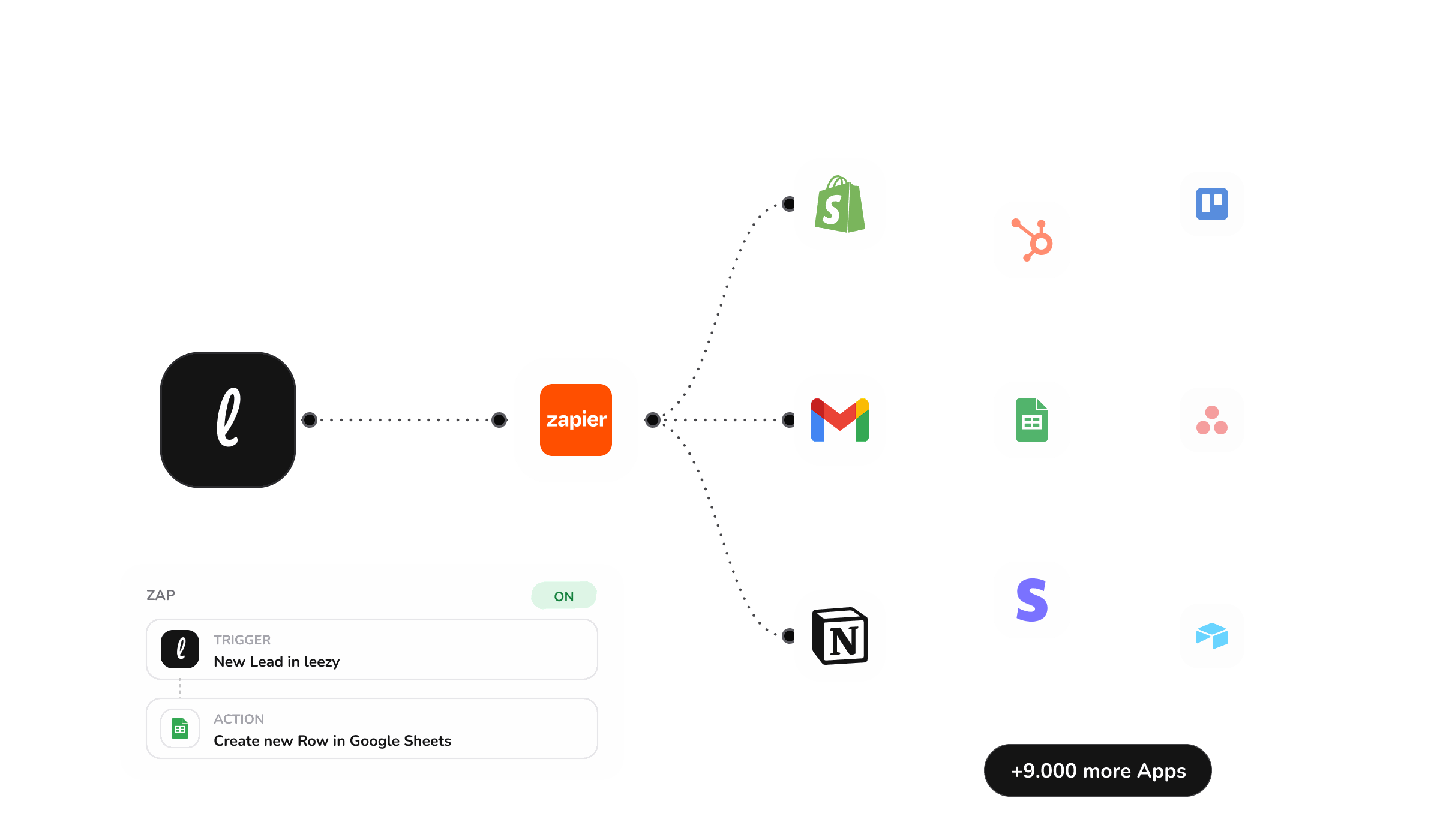
Connect leezy to Zapier and route new leads, new tickets, and scheduled meetings into actions your team configures in Zapier. leezy supplies the trigger data; Zapier handles the destination workflow across thousands of apps.
Paid leezy plan · Zapier account · owner or admin access
leezy trigger

Zapier
Configured destination action
New Lead · New Ticket · Meeting Scheduled
CRM · help desk · calendar · thousands of apps
Available triggers
Three Leezy events start a Zap
Leezy provides the trigger data when one of these events occurs. You choose and configure every destination action in Zapier.
lead.createdNew Lead
Fires when contact details are captured. New Lead starts with score 0 and qualified false, alongside supported contact name, email, phone, company, status, and timestamp fields.
ticket.createdNew Ticket
Fires when a new ticket is created in Leezy so a Zap can route its supported fields to the next step.
meeting.scheduledMeeting Scheduled
Fires when a meeting is scheduled and provides the supported meeting data for the Zap.
Setup
From Leezy trigger to working Zap
Build the workflow in Zapier, authorize the Leezy workspace once, test the trigger data, and then configure the destination action.
- 01
Create a Zap
Start a new Zap in your Zapier account and add Leezy as the trigger app.
- 02
Choose a trigger
Select New Lead, New Ticket, or Meeting Scheduled for the event that should start the workflow.
- 03
Authorize the workspace
A Leezy owner or admin completes OAuth. One OAuth connection covers the Leezy workspace.
- 04
Test the trigger data
Static sample data is available. Recent matching records are optional and recommended only for representative live validation. Inspect the returned fields; results are best-effort and may not be the newest.
- 05
Configure and publish
Map the Leezy fields, configure the destination action in Zapier, test the complete Zap, and turn it on.
Example workflows
Route each event to the next team step
These examples start with Leezy trigger data. The destination app and its action are selected and configured in Zapier.
New Lead to HubSpot or Google Sheets
When New Lead fires, configure Zapier to create a HubSpot contact or add a Google Sheets row from the supported lead fields.
New Ticket to Zendesk or Slack
When a new ticket is created, configure Zapier to create a Zendesk ticket or notify the responsible Slack channel.
Meeting Scheduled to calendar or follow-up
When Meeting Scheduled fires, configure Zapier to add a calendar event or start a follow-up email action.
Access and operation
Know the connection boundary before publishing
The Leezy connection supplies events at workspace level. Zapier owns the destination steps, Zap status, and action configuration.
Paid plan and Zapier account
The integration requires a paid Leezy workspace plan and a Zapier account.
Owner or admin authorization
Only a Leezy workspace owner or admin can authorize or disconnect the Zapier connection.
One workspace connection
One OAuth connection covers the Leezy workspace rather than an individual agent or Zap.
Samples first, live validation when useful
Static samples are provided. Recent matching records are optional and recommended only for inspecting representative live fields. Returned records are best-effort and may not be the newest.
Reconnect, then recover affected Zaps
Disconnecting pauses existing webhook subscriptions and stops new Leezy events. Reauthorization alone does not automatically reactivate affected Zaps. Review, retest, and enable them in Zapier.
Choose the right integration
Use Zapier for events, not every connection
Zapier, Notion, and WhatsApp solve different parts of the customer journey. Choose the connection that matches the job.
Zapier for event routing
Use Zapier to carry Leezy trigger data into destination actions you configure across thousands of apps.
Notion for knowledge
Use the Notion integration to import selected pages into an agent's knowledge base and re-sync reviewed changes.
WhatsApp for conversations
Use the direct WhatsApp Business channel when customers should talk with the Leezy agent in WhatsApp.
Sources
Product behavior and setup references
The integration boundaries on this page were checked against Leezy's current implementation and documentation plus Zapier's public listing and trigger guidance.
FAQ
Zapier integration questions
Is Leezy available in Zapier?
Yes. The public Leezy app is available in Zapier, where you create a Zap and select Leezy as its trigger app.
Which Leezy triggers are available?
The public triggers are New Lead (lead.created), New Ticket (ticket.created), and Meeting Scheduled (meeting.scheduled).
What do I need before connecting?
You need a paid Leezy workspace plan, a Zapier account, and access to a Leezy owner or admin for authorization.
Who can authorize the connection?
A Leezy workspace owner or admin completes OAuth. One OAuth connection covers the Leezy workspace.
Do I need a recent record to test a trigger?
No. Static sample data is available. Recent matching records are optional and recommended for inspecting representative live fields. When returned, they are best-effort and may not be the newest.
What happens after I disconnect and reconnect Leezy?
Disconnecting pauses existing webhook subscriptions and stops new Leezy events. Reauthorization alone does not automatically reactivate affected Zaps. Review, retest, and enable them in Zapier.
Does Leezy configure the destination action?
No. Leezy provides the trigger data. You select and configure every destination action in Zapier, including the destination app, field mapping, and action settings.
Your first agent, live today
Connect your content, test the agent, and go live in minutes. Start free and upgrade only when the math is obvious.