Connect a Leezy chatbot to a WhatsApp Business phone number so customers can chat with the AI directly inside WhatsApp.
This guide walks through the full setup, including the Meta side. The setup is one-time and takes about 30–45 minutes for a first-time user. Allow longer if business verification is required.
How it works
Once connected, every message a customer sends to the WhatsApp number is forwarded to Leezy, the chatbot generates a reply using its trained knowledge, and the reply is sent back through WhatsApp. Conversations show up alongside web chats in the chatbot Activity tab.
The integration uses the official Meta WhatsApp Cloud API, so message delivery, encryption, and deliverability are handled by Meta.
Who owns the Meta App
The Meta App created during the setup below belongs to the business doing the setup, not to Leezy. Leezy is not a WhatsApp solution provider — every business runs its own Meta App and connects its own credentials. A few practical consequences:
- No Meta review or approval process is required. The Meta App can stay in Development mode in the developer portal — that is its normal state for Cloud API messaging and does not block sending or receiving real messages.
- Business verification with Meta is optional to start. It raises the 250-conversation-per-day limit and unlocks marketing and template messages, but is not a prerequisite for connecting Leezy.
- The temporary access token shown right after creating the Meta App expires after 24 hours. A permanent System User token (Phase 3) replaces it for any real use.
In short: signing up with Meta and walking through the four phases below is enough. No platform review, no app submission, no waiting on a Meta approval queue.
Who pays for what
There are two separate cost streams. It is important to understand both before connecting:
| Cost | Paid to | Notes |
|---|---|---|
| WhatsApp conversation fees (per message session) | Meta, billed to the business that owns the WhatsApp Business Account | Pricing varies by country and conversation category (service, marketing, utility, authentication). Most service conversations are between $0.005 and $0.08. See Meta's pricing page. |
| AI message generation | Leezy, deducted from the workspace plan quota | Each WhatsApp turn costs 2 message units (1 inbound + 1 AI reply), exactly like the web widget. |
In short: the customer using Leezy owns the Meta App and pays Meta for delivery; Leezy pays for the AI inference and counts each turn against the workspace plan.
Requirements
Before starting, make sure all of the following are in place:
- A paid Leezy workspace plan. Workspace owners and admins can connect WhatsApp.
- The Integrations beta feature flag enabled on the workspace. Workspaces without the flag do not see WhatsApp in the deploy channel grid.
- A Facebook account with access to (or permission to create) a Meta Business Account.
- A phone number that is not currently registered with WhatsApp (neither the consumer app nor WhatsApp Business app). The number must be able to receive an SMS or voice call for verification.
- A credit card on file in Meta Business Manager (Meta requires this before sending production messages, even at low volumes).
:::tip Test mode is free Meta provides a free test phone number that can message up to 5 pre-approved recipients without business verification. The full flow below works with the test number, so the integration can be set up and validated end-to-end before adding billing or a real phone number. :::
Overview of the setup
Setup happens across four surfaces:
- Meta Business Manager — the company-level container.
- Meta for Developers — where the Meta App that talks to Leezy lives.
- Meta Business Settings → System Users — where a permanent access token is generated.
- Leezy — where everything is pasted in and the webhook URL is copied back to Meta.
Each phase below ends with a checklist of values to copy into a notepad. By the end of phase 3, four values should be saved. Phase 4 uses them.
Phase 1 — Meta Business Account
A Meta Business Account is the legal entity wrapper around the WhatsApp connection. Creating one is free.
1.1 Create or open the Business Account
- Go to business.facebook.com and sign in with the Facebook account that should own the WhatsApp connection.
- If no Business Account exists yet, click Create account and provide the legal business name, the name of the person managing it, and a business email address.
- If a Business Account already exists, click into it.
1.2 Note the Business Account ID
This ID is occasionally needed for support tickets. To find it: in Business Manager, click the gear icon (⚙️) in the bottom-left → Business settings → the ID appears under the business name at the top of the page.
:::note Business verification Meta limits unverified businesses to 250 unique customer conversations per 24 hours. Verification is not required to start, but plan for it before any marketing campaign. The verification process takes 1–3 business days and requires a business document (registration certificate, utility bill, or tax document). Start it from Business settings → Security center → Start verification. :::
Phase 2 — Create a Meta App with WhatsApp
The Meta App is what actually holds the WhatsApp Cloud API credentials.
2.1 Create the App
Meta uses a 5-step wizard for app creation: App Details → Use cases → Business → Requirements → Overview.
- Go to developers.facebook.com and sign in with the same Facebook account.
- Click My Apps in the top right, then Create app.
- App Details: Enter a Display name (e.g. "Acme Customer Support") and the Contact email. Click Next.
- Use cases: Choose the WhatsApp-related use case (or "Other" if shown). Click Next.
- Business: Link the Business Account created in Phase 1. Click Next.
- Requirements / Overview: Review what Meta will provision and click Create app, then complete the security check.
:::note Wizard may change Meta redesigns this flow regularly. The exact step labels may differ. The key outcome is: after creation, you land on the App Dashboard with a left sidebar containing Dashboard, App Settings, App Roles, Hinweise / Notifications, App Review, Products, Webhooks. :::
:::tip "Development" mode is the normal state After creating the app, the Meta developer dashboard shows it as In Development and may display a banner about App Review. Both are expected and do not block anything. WhatsApp Cloud API messaging is designed to work in Development mode — the app can send and receive real messages on the connected WhatsApp number without ever going through App Review or switching the app to "Live". :::
2.2 Add the WhatsApp product to the app
- From the new app's dashboard, scroll to Add products to your app.
- Find the WhatsApp card and click Set up.
- Meta automatically creates a test WhatsApp Business Account (WABA) and a test phone number. This is normal — the test number can be replaced later.
- The page now shows the WhatsApp API Setup screen. Keep this tab open — most of the values needed in Phase 3 come from here.
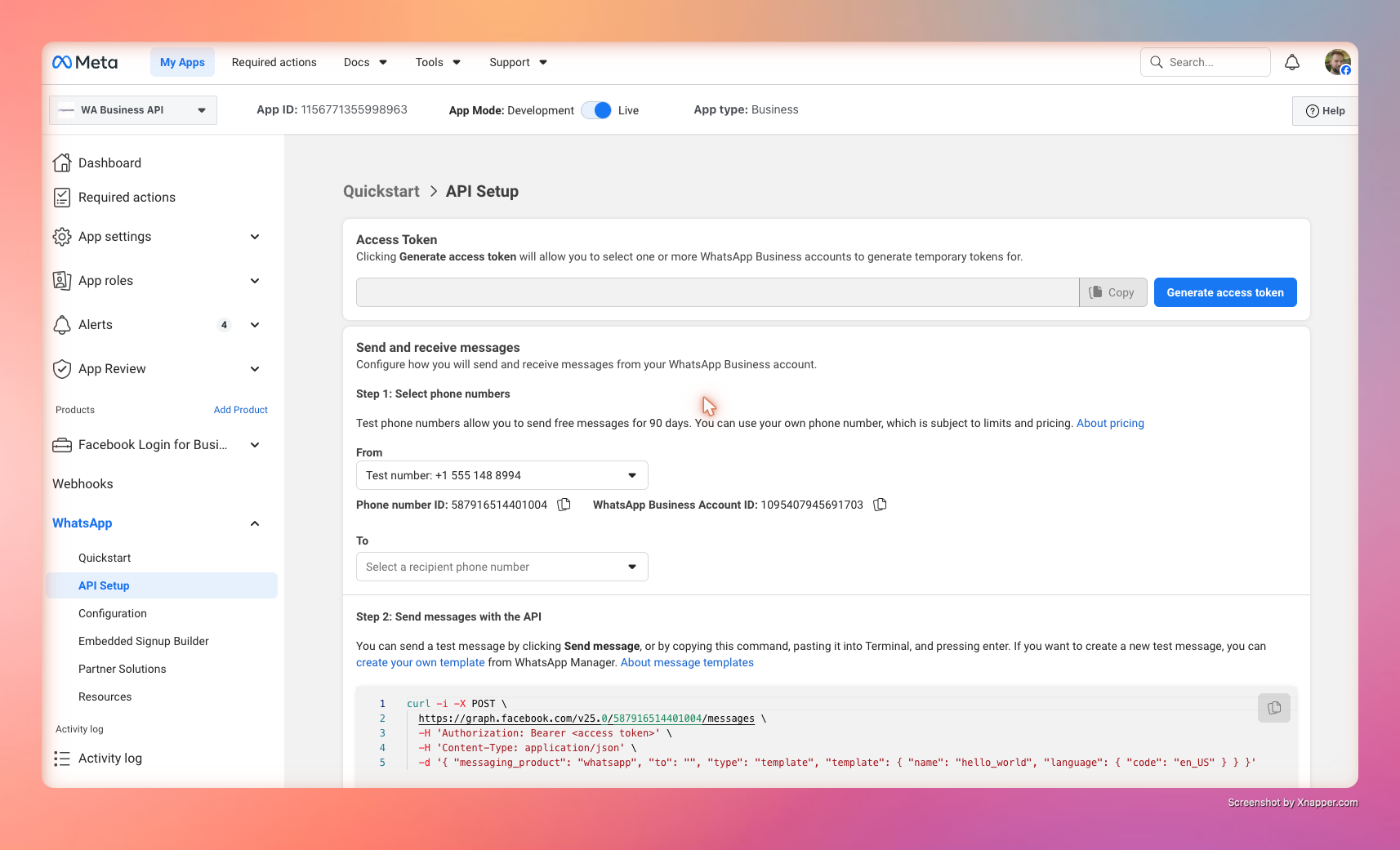
2.3 Copy the Phone Number ID and WABA ID
On the API Setup page:
- The From dropdown lists every phone number registered to the app. The number's Phone number ID is shown directly underneath it (a 15–17 digit number). Copy this value — this is
phone_number_id. - Below that, find WhatsApp Business Account ID. Copy this value — this is
waba_id.
:::caution Test number vs. production number The Phone Number ID for the auto-created test number works for end-to-end testing but can only message 5 pre-approved recipients (added via the To dropdown on the same page). To go live with any phone number, click Add phone number on this page and follow the verification flow with a phone number that is not currently on WhatsApp. :::
2.4 Copy the App Secret
The App Secret is used to verify that incoming webhook requests really come from Meta.
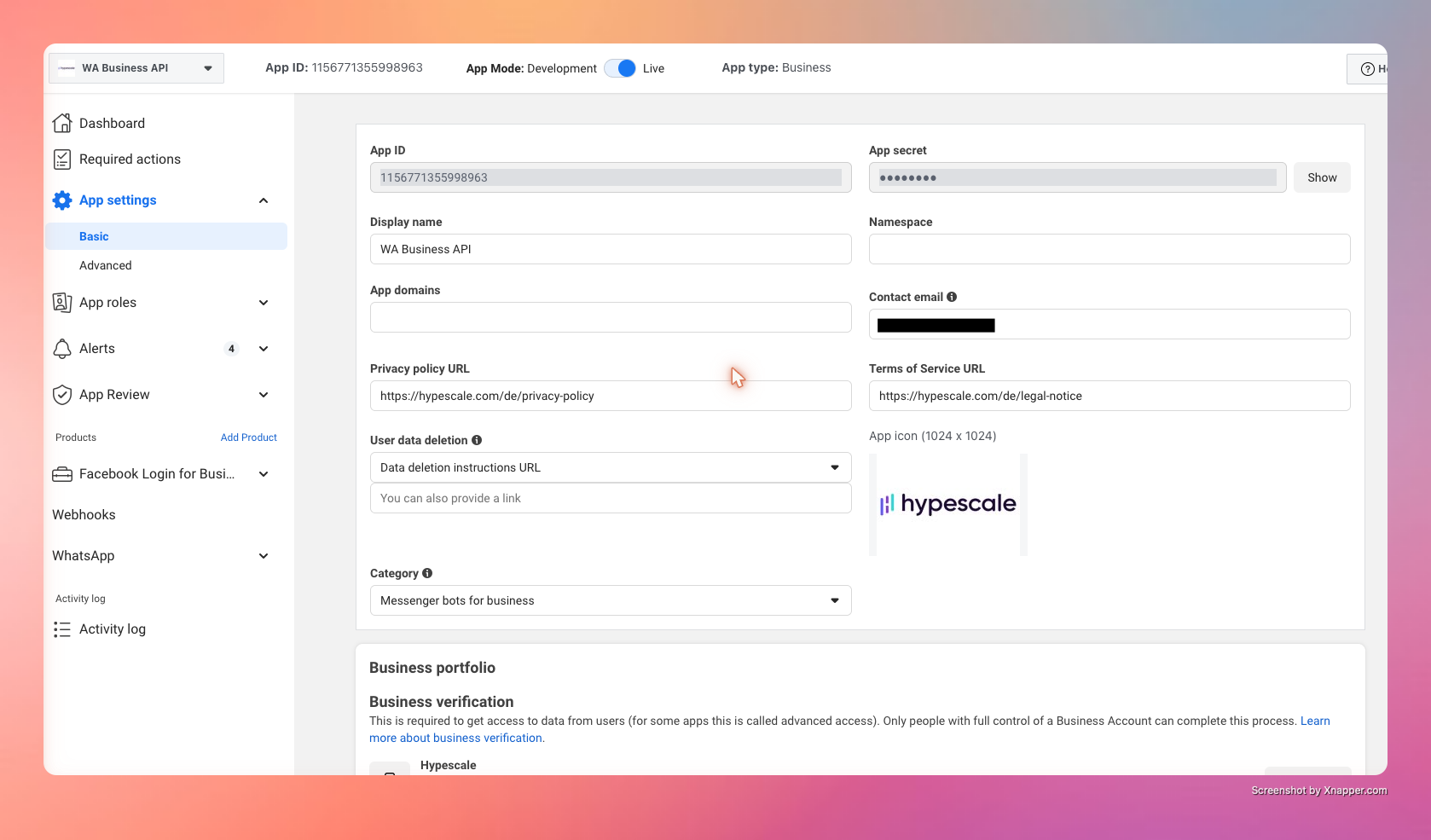
- In the left sidebar of the same App dashboard, click App Settings → Basic (German UI: App-Einstellungen → Allgemeines).
- Find the App Secret field (German: App-Geheimcode), click Show / Anzeigen, enter the Facebook password if prompted, then copy the value. This is
app_secret.
:::warning Treat the App Secret like a password It is a long-lived signing key. Anyone who has it can forge webhook requests. Leezy stores it encrypted in a secure vault, but never share it in chat, email, or screenshots. :::
Phase 2 checklist
By now, three values should be saved:
-
phone_number_id -
waba_id -
app_secret
Phase 3 — Generate a permanent access token
The access token is what authorizes Leezy to send messages on behalf of the WhatsApp number. The temporary token shown on the API Setup page expires after 24 hours, so a System User token is required for any real use.
3.1 Create a System User
- Open Meta Business Settings.
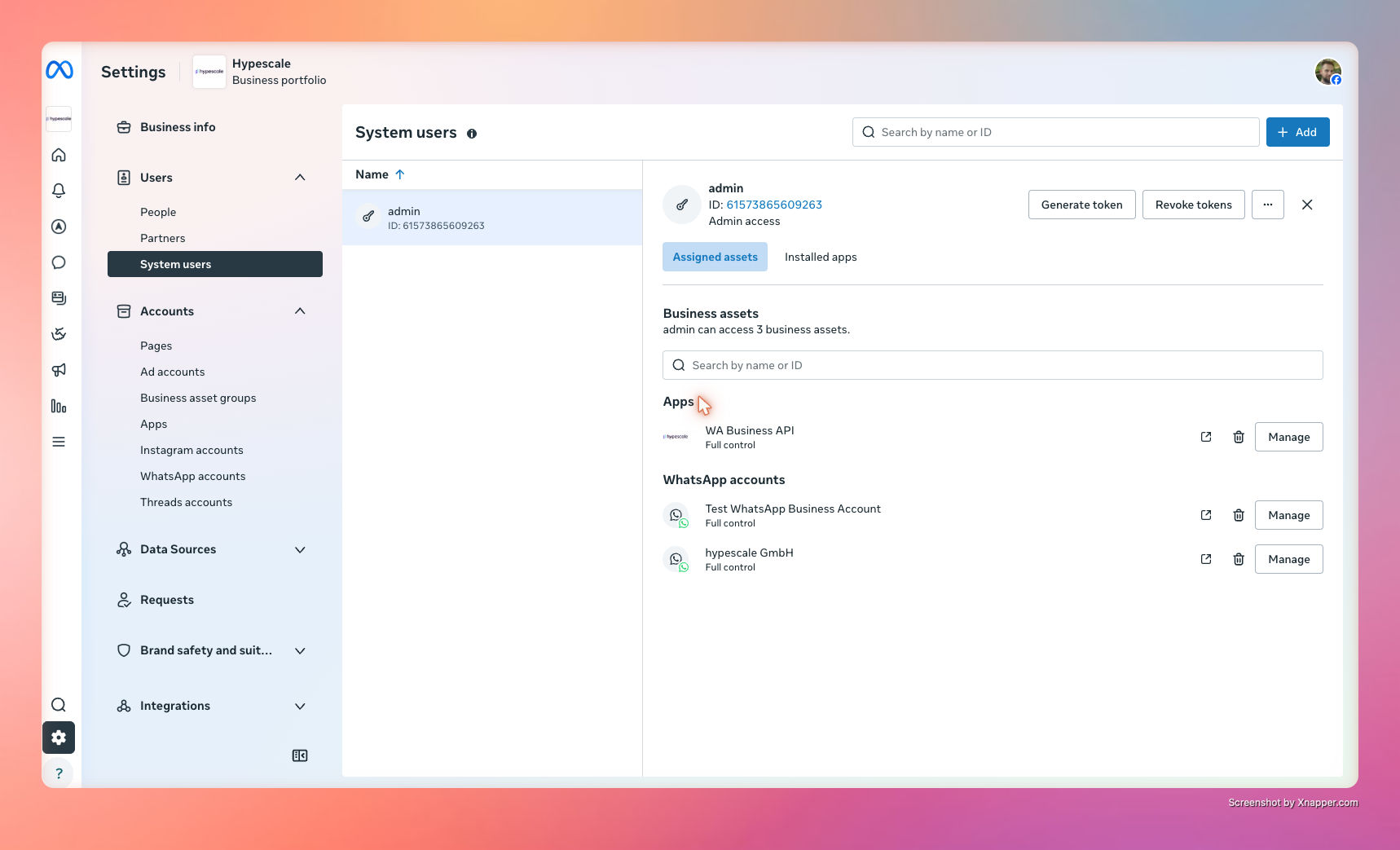
- In the left sidebar, click Users → System users.
- Click Add, name the user (e.g. "Leezy Integration"), set the role to Admin, and click Create system user.
3.2 Assign the WhatsApp Business Account
- With the new system user selected, click Add assets.
- Choose WhatsApp accounts, select the WABA from Phase 2, and grant Full control.
- Click Save changes.
3.3 Generate the access token
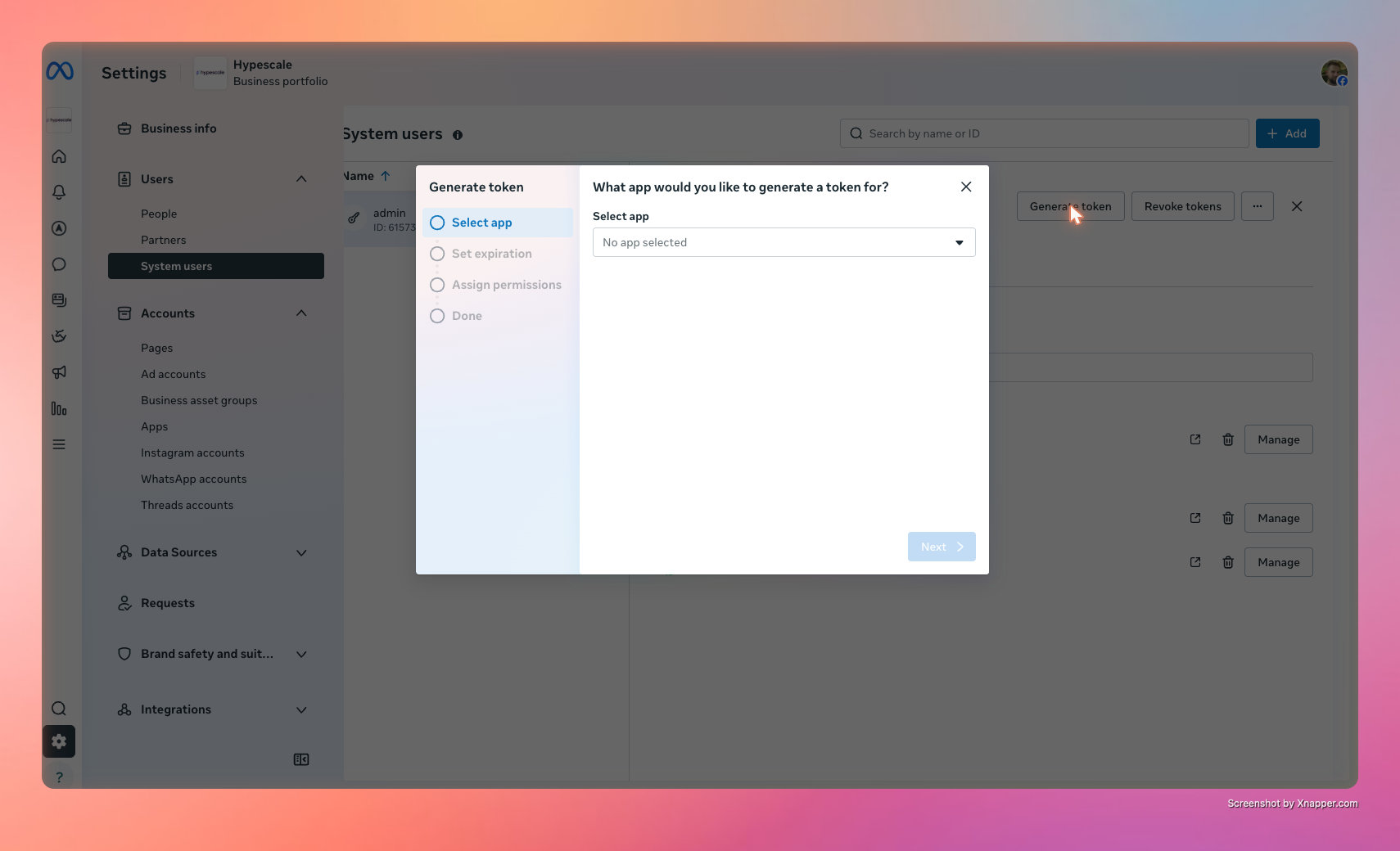
- Still on the system user's page, click Generate new token (German: Token generieren).
- The dialog is a 4-step wizard. Step through:
- Select app: Pick the Meta App created in Phase 2.
- Token expiration: Choose Never (German: Nie). The default is "60 days (recommended)" — see the warning below.
- Permissions: Three WhatsApp scopes are pre-selected automatically:
whatsapp_business_messagingwhatsapp_business_managementwhatsapp_business_manage_eventsLeave all three checked.
- Click Generate token.
- Copy the token immediately. This is
access_token. It will not be shown again — if it is lost, generate a new one.
:::warning 60-day default vs. "Never" Meta now recommends rotating tokens every 60 days and pre-selects that option. Choosing Never keeps the integration working indefinitely without rotation, but goes against Meta's current recommendation. For high-security environments, choose 60 days and set a calendar reminder to regenerate the token and update it in Leezy before it expires. For most teams, Never is a reasonable trade-off. :::
:::warning Token storage The access token gives full send/receive permission for the WhatsApp number. Like the App Secret, Leezy stores it encrypted. Do not paste it into shared documents. :::
Phase 3 checklist
All four values needed for Leezy are now collected:
-
phone_number_id -
waba_id -
app_secret -
access_token
Phase 4 — Connect in Leezy
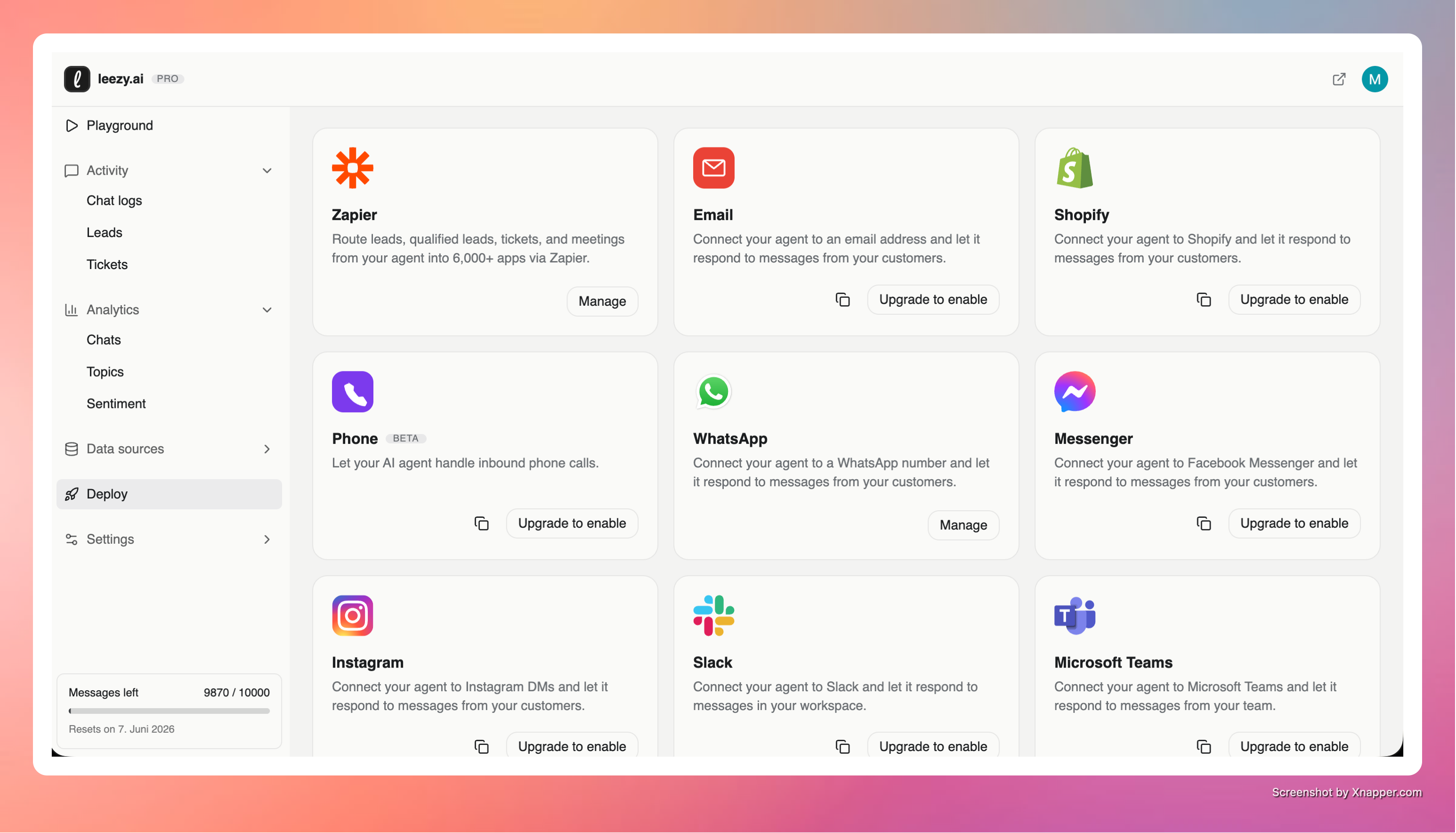
4.1 Open the WhatsApp connect screen
- In Leezy, open the chatbot that should answer WhatsApp messages.
- Go to Deploy → WhatsApp.
- Click Connect WhatsApp.
4.2 Paste the four values
Paste each saved value into its matching field:
| Leezy field | Value from Meta |
|---|---|
| Phone Number ID | phone_number_id (Phase 2.3) |
| WhatsApp Business Account ID | waba_id (Phase 2.3) |
| Access Token | access_token (Phase 3.3) |
| App Secret | app_secret (Phase 2.4) |
Click Connect. Leezy validates the credentials with Meta, encrypts and stores them, and returns a Webhook URL and Verify Token on the next screen. Copy both — they are needed in the next step.
4.3 Configure the webhook in Meta
This step tells Meta where to send incoming messages. Everything is configured inline on a single page — there is no separate "Edit" dialog or "Manage" step.
- Go back to the Meta App at developers.facebook.com → WhatsApp → Configuration (German: WhatsApp → Konfiguration).
- Under Webhook at the top of the page:
- Paste the Leezy Webhook URL into Callback URL.
- Paste the Leezy Verify Token into Verify token (German: Verifizierungstoken).
- Click Verify and save (German: Bestätigen und speichern). Meta sends a one-time verification request and shows a green confirmation if it succeeds.
- Below the webhook section is the Webhook fields table listing every event Meta can notify Leezy about (one row per field, with a toggle on the right). Find the messages row and switch its toggle to Subscribed (German: Abonniert). Leave the other fields unsubscribed.
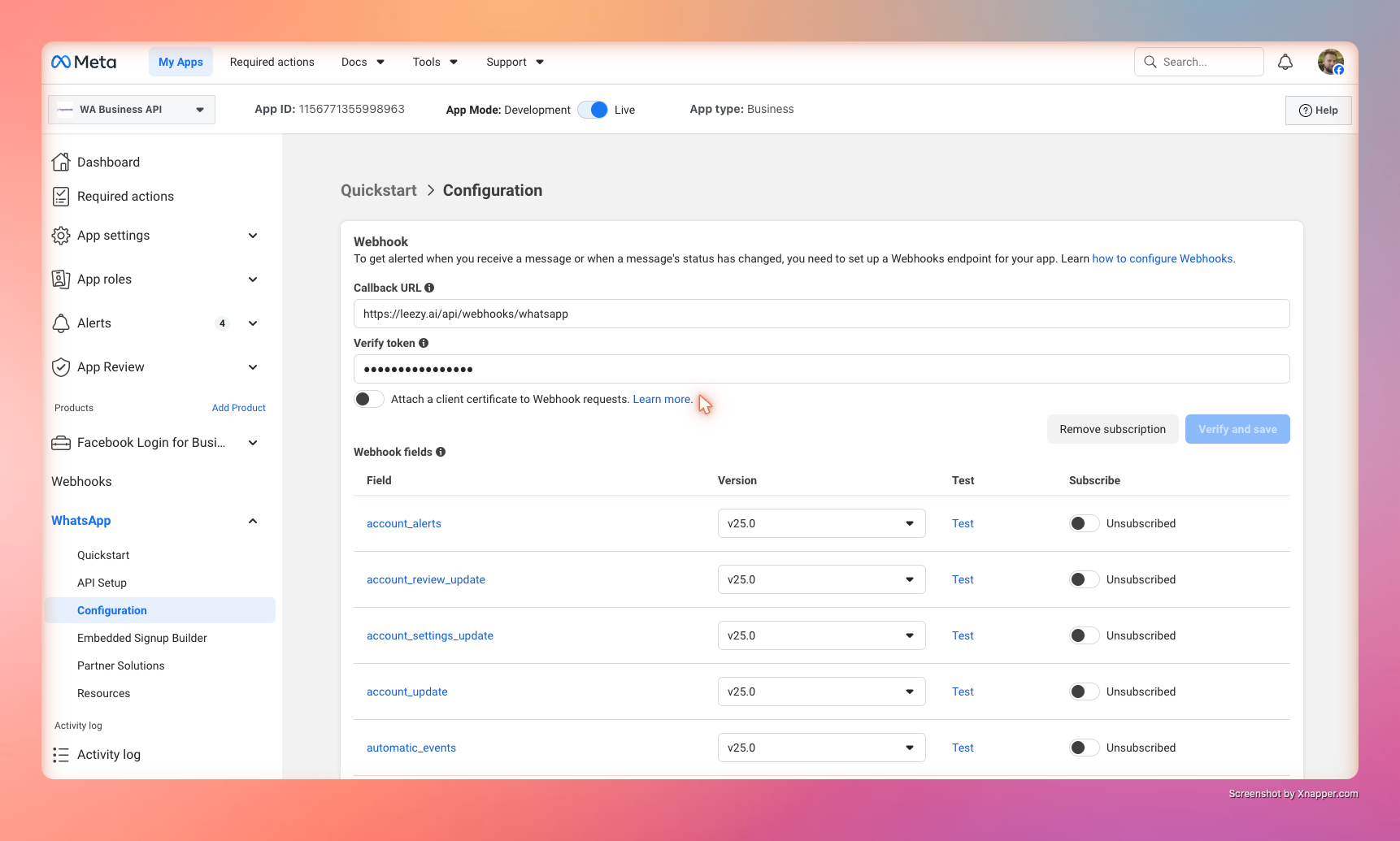
:::tip Verify before subscribing The toggle on each field will only stay enabled if the Callback URL has been successfully verified first. If toggling fails silently, re-check the URL and Verify Token in step 2. :::
4.4 Send a test message
From a personal WhatsApp account, send a message to the production number, or — if still using the test number — add the personal number to the To allowlist on the WhatsApp API Setup page first, then send a message.
Within a few seconds, an AI reply should arrive in WhatsApp. The conversation also appears in the Leezy chatbot's Activity tab.
If nothing arrives, see Troubleshooting below.
What the chatbot can and cannot do today
| Capability | Status |
|---|---|
| Reply to inbound text messages | ✅ Supported |
| Use chatbot's trained knowledge (RAG) | ✅ Supported |
| Trigger AI tools (lead capture, ticket creation) | ✅ Supported |
| Receive images, documents, voice notes | Acknowledged with placeholder text — full media handling is on the roadmap |
| Send images, documents, or buttons | Not yet supported in v1 |
| Send proactive (outbound) messages outside the 24-hour window | Not yet supported — requires Meta-approved templates |
The 24-hour customer service window
Meta enforces a rule: a business can only send freeform messages within 24 hours of the customer's last message. After that window, only pre-approved template messages can be sent. Since Leezy v1 is reply-only, this is invisible — every reply happens in direct response to a customer message, always inside the window.
Troubleshooting
"Verify and save" fails in the Meta webhook dialog
- Double-check the Verify Token is pasted exactly, with no leading or trailing spaces.
- Make sure the Callback URL was copied in full (it ends in
/api/webhooks/whatsapp). - The Leezy connection must still be active — reopening the connect screen and clicking Reconnect generates a fresh Verify Token.
Messages send from WhatsApp but no reply arrives
- Confirm the messages webhook field is subscribed in Meta (Phase 4.3 step 7). This is the most common cause.
- In Leezy, check the chatbot's Activity tab — if the inbound message appears there but no reply is sent, the workspace's plan quota may be exhausted.
- For test phone numbers: the sender's number must be added to the To allowlist on the WhatsApp API Setup page, otherwise Meta drops the message before it reaches Leezy.
"Invalid OAuth access token" error when connecting
- The token was probably copied from the temporary token field on the API Setup page (which expires in 24 hours). Generate a permanent System User token following Phase 3 instead.
- Confirm both
whatsapp_business_messagingandwhatsapp_business_managementpermissions were checked when generating the token.
Replies are slow or out of order
- Meta enforces a per-number rate limit. On the unverified tier, this is 250 unique conversations per 24 hours. Hit that and Meta starts rejecting sends.
- Complete business verification (Phase 1.2) to lift the limit.
Disconnecting WhatsApp
In Leezy, go to Deploy → WhatsApp → Disconnect. This removes the credentials from Leezy's vault and unsubscribes the webhook. The Meta App and phone number remain intact and can be reconnected at any time.
To fully delete the WhatsApp Business Account on Meta's side, do that from Meta Business Settings → Accounts → WhatsApp Accounts.
Frequently asked questions
Can the same WhatsApp number be used with another tool at the same time? No. A WhatsApp Business phone number can only be connected to one Cloud API integration at a time. Disconnect from the other tool first.
Can multiple chatbots share one WhatsApp number? No. Each WhatsApp number maps to exactly one chatbot. To run multiple chatbots, register multiple phone numbers in Meta.
Does Leezy store the actual messages? Yes — both directions are stored under the chatbot's conversation history, the same way web chats are. They are visible in the chatbot's Activity tab and counted toward the workspace's plan quota.
Where is the data stored? All conversation data is stored in the EU.
What happens if the Meta App is deleted or the token is revoked? Inbound messages stop reaching Leezy and outbound replies fail. The Leezy connection will report an error on the next attempt. Generate a new token and click Reconnect in Leezy.
Does the Meta App need to be reviewed or approved by Meta? No. The Meta App stays in Development mode in the developer dashboard, and that is the correct state for Cloud API messaging. Meta's separate App Review process exists for granting third-party access to other businesses' accounts and is not required for sending or receiving messages on the workspace's own WhatsApp number.
Is business verification with Meta required to use WhatsApp through Leezy? Not to get started. Unverified Meta Business Accounts can handle up to 250 unique conversations per 24 hours, which covers testing and small deployments. Verification is only needed to lift that limit and to send marketing or template messages.
Is Leezy a Meta-approved WhatsApp solution provider? No, and the integration does not require that. Each business connects its own Meta App and credentials, so the WhatsApp connection lives directly between that business and Meta — Leezy is only the chatbot layer on top.